Table of Contents
Turn ChatGPT into a tool-building agent with its own persistent arsenal. With microfn’s MCP integration, ChatGPT creates reusable functions that it can update, patch, and evolve—not just one-off code execution.
Each function becomes part of ChatGPT’s growing toolbox, deployed instantly to a secure cloud environment and ready to reuse across conversations.
1. Access settings
Navigate to chatgpt.com/apps#settings/Connectors/Advanced.
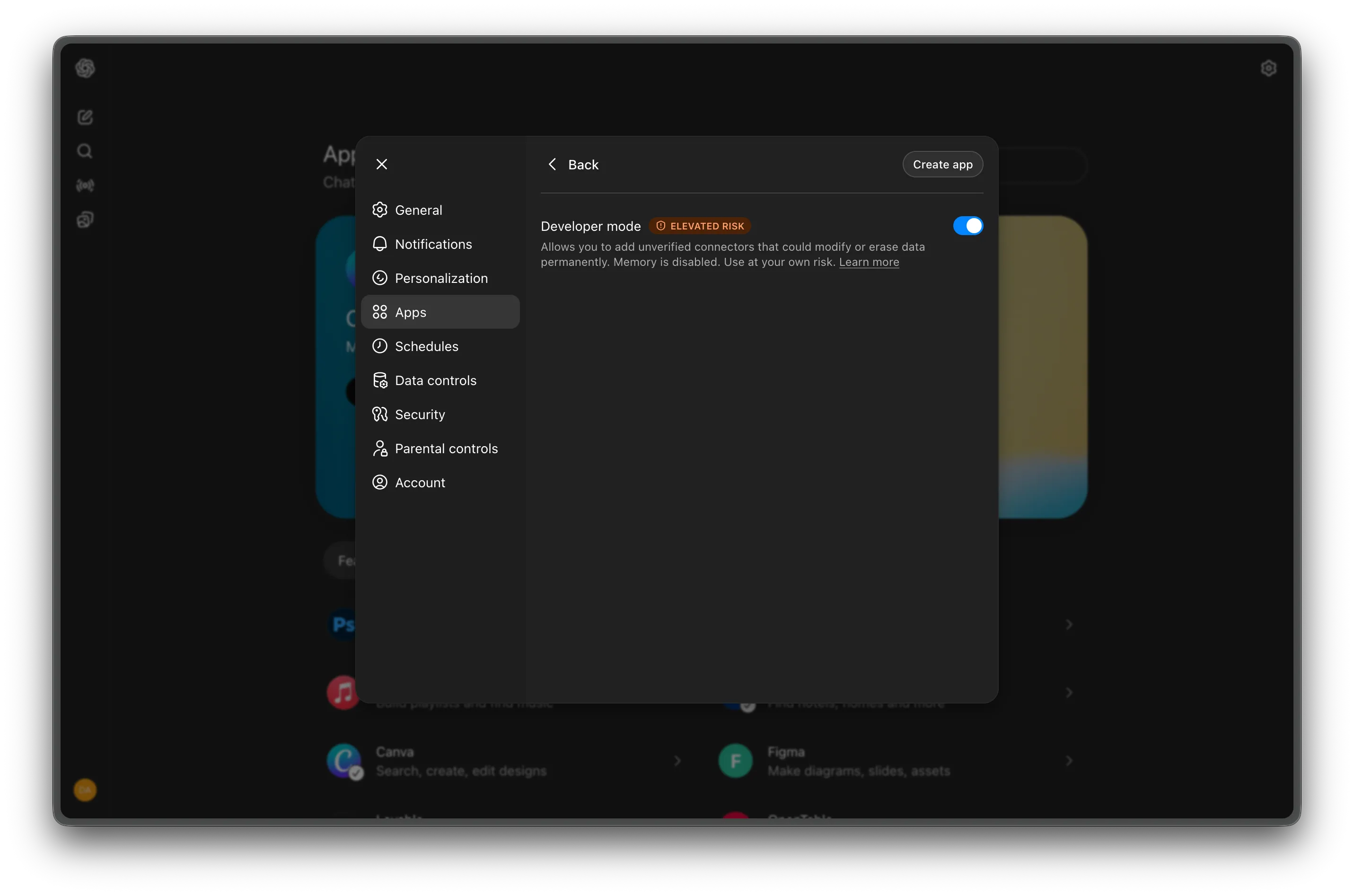
2. Enable Developer Mode
In the Advanced settings, ensure Developer Mode is toggled ON.
3. Create MCP Server
Click the Create button (often labeled as “Create App” in the developer view) to add a new MCP Server.
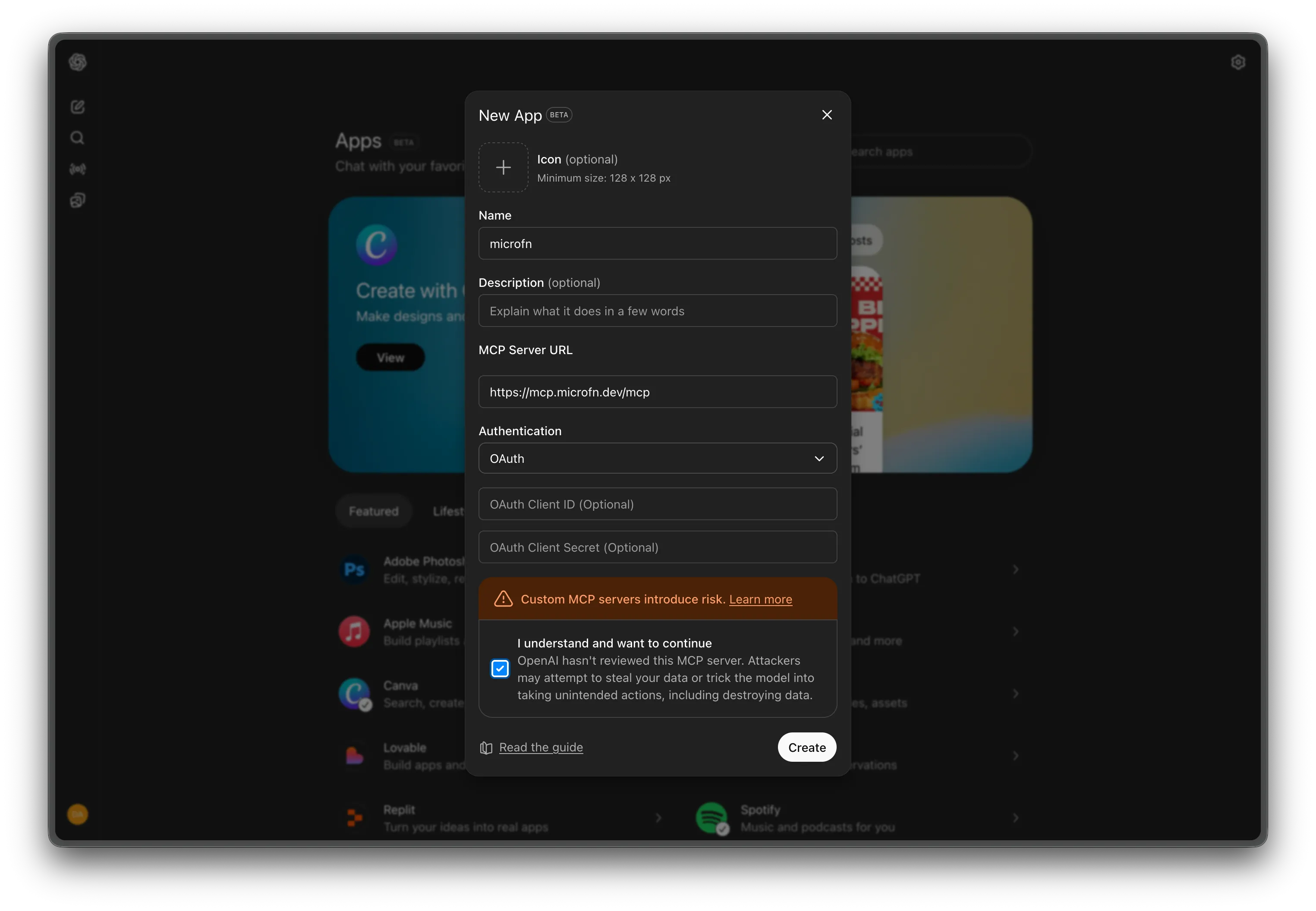
Fill in the following details:
- Name: microfn
- Server URL:
https://mcp.microfn.dev/mcp - Authentication: OAuth
- Trust: Toggle I trust this application to ON.
4. Connect and Authorize
Click Save, then find microfn in your list of servers and click Connect.
You will be redirected to authorize the connection via OAuth. Follow the prompts to log in to your microfn account and authorize the integration.
5. Verify
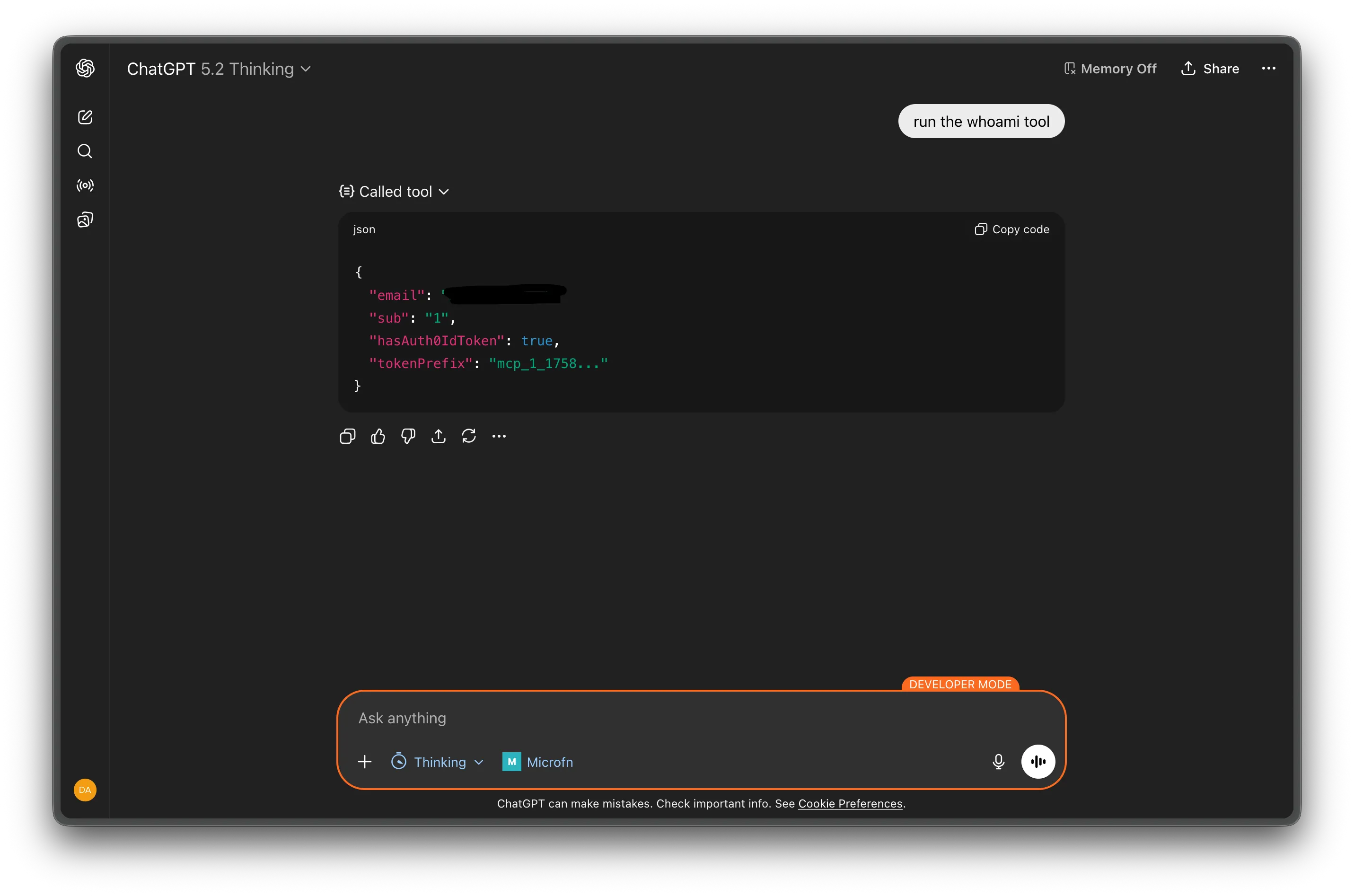
To use microfn in a new chat, ensure it is enabled in the model selector.
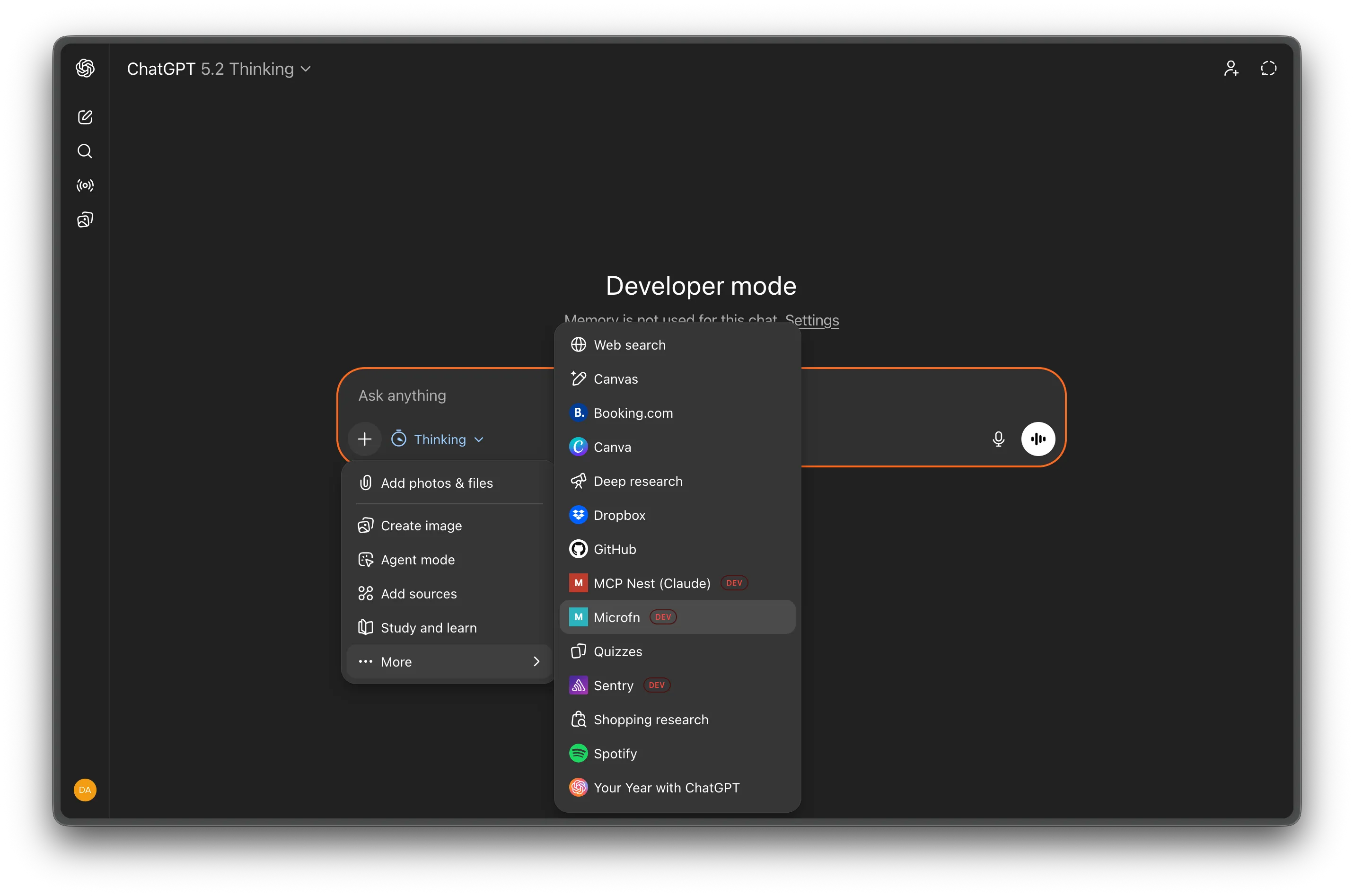
Once enabled, you can verify the integration by asking ChatGPT to run a command, like “whoami”.
Read more
For more details on available tools and advanced configuration, check out the microfn MCP documentation.
Built with microfn, your toolbox for composable functions
Microfn is a tiny cloud runner for composable JavaScript functions. Write your function, hit save, and microfn deploys it instantly.